 Unreason3D
Unreason Basics
This should be enough to get you modeling.
If you have used Rhino, skim to what is different. If you have not used a CAD modeler before, read it in order.
Starting
Open the app. You land in an empty document, one Perspective view, and a text field at the top of the left-hand column that says type a command.
That field is how you drive the app. Most tools have icons too, but learning the names and typing is the 'traditional' mode — which is a weird thing to say about a new app.
You never have to install anything, but you can, and on a tablet you probably want to. The Source has the method for each browser.
The promptline
Type the name of what you want and press Enter. Circle, Loft, Extrude, BooleanUnion. As you type, a list appears showing what matches — Enter runs the top one, or arrow down to pick another. It matches three ways at once: our name, Rhino's name, and a few concept words, so symmetry turns up both Reflect and Radial.
Commands are named about the way Rhino names them, so what you learn here transfers. Where the names differ the list shows both — SketchCurve (Rhino: InterpCrv). Either one works.
Every command also has a button, grouped down the left side — Curves, Surfaces, Mechanical, SuperBs, Change, Relationships, Analyze. A button press puts the word you would have typed into the promptline, so the two teach each other.
partial, for now All three channels match the beginning of a word. extr finds Extrude; a typo finds nothing rather than the nearest thing.
Moving around
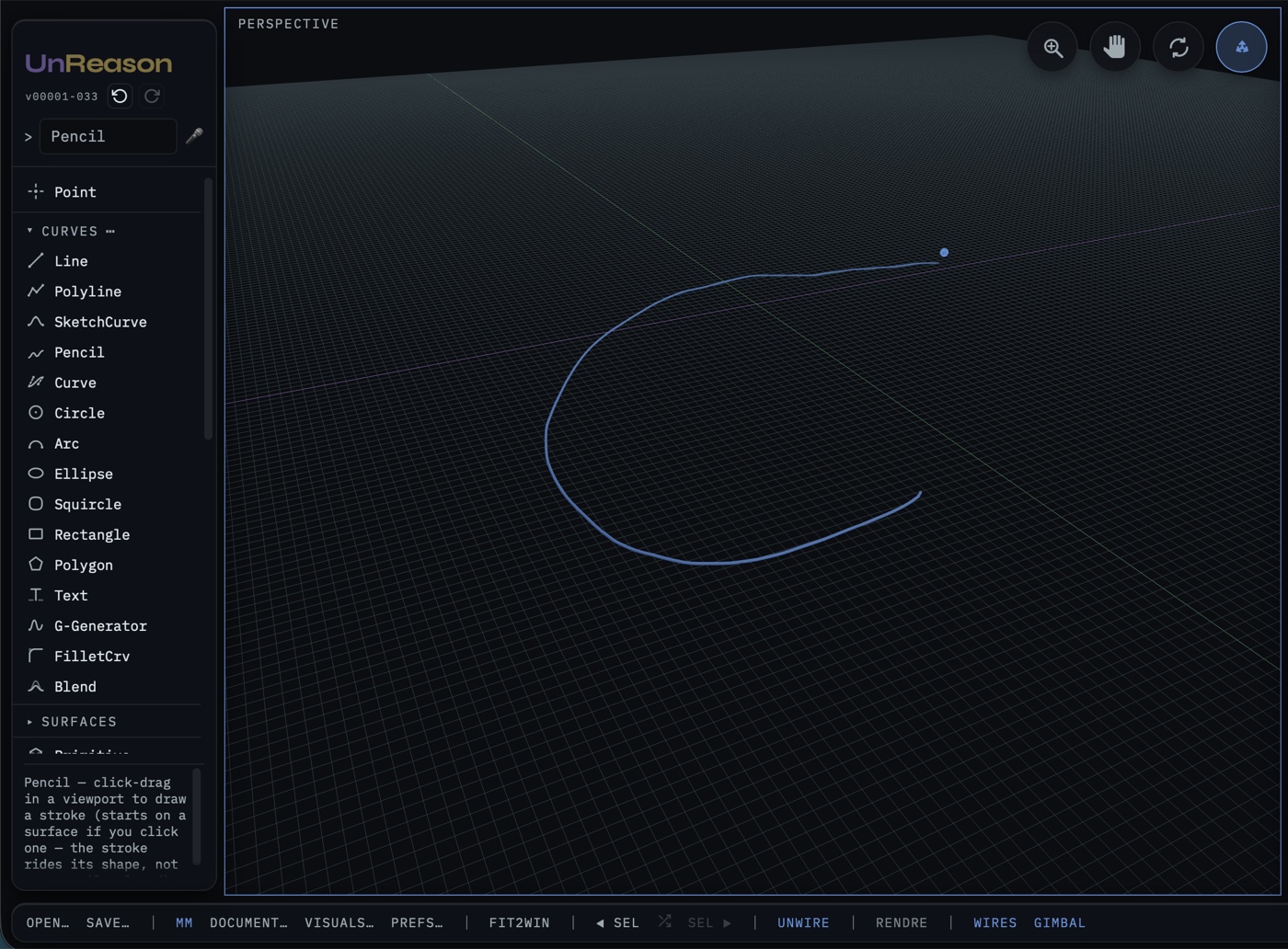
Four viewports: Perspective, Top, Front, Right. You measure and draw in the orthographic three and look at the Perspective. A new session opens on Perspective alone — Opens with, in Document Properties, starts you on all four.
- Orbit — right-drag on empty space in Perspective. The orthographic views pan instead; a Top view that has been tumbled is no longer a Top view.
- Pan — shift-drag, or the pan button.
- Zoom — scroll or pinch.
- Navigation buttons sit in each viewport's corner, because an iPad has no right-drag.
Selecting
Click to select. Shift-click adds, Cmd-click (Ctrl on Windows) removes, drag on empty space to marquee.
You can also click parts of things directly — a surface edge, a face, a control point. A surface edge is a perfectly good curve: sweep along it, loft from it, use it as a rail, without extracting a copy first.
Control points come on when you select something. Drag one and the geometry follows. The exception is a solid carrying features — a filleted box does not show its net unless you ask, because that net belongs to the fillets rather than to the box.
What will surprise a Rhino user
- There are no keyboard shortcuts to learn. Deliberately. Commands are typed by name and modified with the pointer.
- Operations that consume their inputs hide them rather than deleting them. Join, Split, and the booleans all leave their parents in the document, hidden, reachable again with SelParents.
- History is live in two places at once — a command stack, and a node graph called UnWire. Two views of one thing.
- One command often covers what other modelers spread across several. Primitive is every primitive, Offset every offset. The options live in the parametric properties of what the command made, not in a dialog.
Where your work goes
The app autosaves into your browser's storage, so a crashed tab does not cost you the session. No account, no cloud; nobody else can reach your work, including me.
Clearing your browser data deletes your work, and there is no copy anywhere to restore from. Save to .unreason or export to a real folder at the end of a session.
Your first three minutes
- Type Circle, click a center, drag a radius.
- Type Circle again and make a second one above the first — switch to the Front view to place it.
- Type Loft, click both circles, press Enter. You have a surface.
- Select it and look at Properties on the right — degree, knots, counts, all live and editable.
- Drag one of the original circles' control points. The surface rebuilds as you drag, because it remembers what it was lofted from.
- Type UnWire and see the same relationship drawn as a node graph.
When something goes wrong
- Read the status line. It is often already clueing you in.
- The Surface Advisor panel explains a bad surface in plain language — a twisted sweep, a bad revolve axis — rather than only reporting that something failed.
- Undo respects the history graph, so undoing an edit to a parent curve also undoes the rebuild it caused.
Reminder: this is not production software, it has bugs, and you should not put anything in it you cannot afford to lose.